> For the complete documentation index, see [llms.txt](https://docs.wem.io/platform/llms.txt). Markdown versions of documentation pages are available by appending `.md` to page URLs; this page is available as [Markdown](https://docs.wem.io/platform/gettingstarted/devops-portal/applications.md).
# Applications
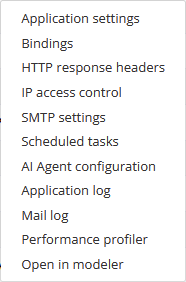
The **Applications** tab provides an overview of all applications deployed on the selected Runtime. This section is for application specific information and settings, each row in this list is an application that is part of this runtime. Every application has its own set of settings found in the context menu of each application.
{% columns %}
{% column width="75%" %}
{% endcolumn %}
{% column width="25%" %}
{% endcolumn %}
{% endcolumns %}
### Application settings
The application settings are set during the setup of the runtime deployment, these deployments can be project specific. Use this section to control operational limits and manage the running state of the application.
Stopping an application makes it temporarily unavailable without removing its configuration or its data.
* Name\
*Set Application name, this is only used for overviews and can be changed.*
* Request Timeout\
*Time limit before a request is timed out,* \
default: 120 seconds
* Request Max Body Size\
*Max body size of HTTP request in MB,* \
*default: 32MB*
* Session Timeout\
*Time-limit before a session gives a timeout,* \
*default: 135 minutes.*
* Status
* *Running*
* *Stopped*
### Bindings
Bindings determine how incoming traffic is routed to the application. An application can have multiple bindings, each defined with its unique hostname.
Here you can configure:
* Hostnames\
*Text, Example: project.wem.io*
* Force HTTPS\
*Yes/no radio buttons*
* SSL Certificate\
*Shows SSL certificate info if used by binding*
* TLS Ciphers\
*MultiSelect of available cyphers*
### HTTP response headers
Set custom security headers, add cross-site scripting protection and add other custom header requirements.
Here you can:
* edit
* Add
* remove
static http response headers.
### IP access control
The **IP Access Control** section allows you to restrict access to an application based on IP address rules. These rules are evaluated before a request reaches the application. Access can be explicitly allowed or denied based on defined IP ranges and endpoint types.
#### Creating a new rule:
Each IP access rule consists of the following fields:
* **After** \
Defines the position of the rule in relation to other rules
* **Comment** \
Description of the rule for administrative clarity
* **Access** \
Allow or Deny
* **From IP Address** \
Start of the IP range
* **To IP Address** \
End of the IP range
* **Endpoint Type** \
Defines which type of endpoints the rule applies to\
Website (users), Webservice (Rest, Soap API's) or Odata service endpoints.
* **Set IP Range to Current Client IP Address** \
Automatically fills the IP range with the current user's IP address
#### Create "Deny all" rule
The deny all button creates a deny all rule to be used at the end of your exceptions list, as these rules are followed sequentially, this will only allow the ip ranges defined in earlier rules and block everything else. This rule is for every type of endpoint; Website, Webservice and Odata.
### Database settings
The database settings controls how much time the application gives the sql server to respond to a command and after how much time is should log a warning.
These settings are only available for devops admins.
* Command Timeout
* Number
* Default: 30
* Command Time Log Threshold
* Number
* Database name
* This cannot be changed
* File Storage mode
* Blob or Database
### SMTP settings
The SMTP settings can also be set on a application level instead of the runtime level. The settings on the application level overwrite the runtime SMTP settings. By default it uses the runtime SMTP unless the settings are defined on a application level.
Settings:
* Host url
* Text
* Port
S*tandard secured SMTP Port is 587. Other commonly used ports are 465 and 2525*
* *Number*
* *Username*
* *Text*
* *Password*
* *Text*
* *Certificate Revocation Check*
* Enable/Disable
* Server Certificate Validation
* Enable/Disable
### AI Agent configuration
AI agents must be configured in the DevOps Portal before they can be used by an application.This configuration is available on Runtimes that support AI functionality and is defined **per application**.
The following settings are configured here:
* Organization ID
* The OpenAI organization identifier associated with the API account.
* Project ID
* The OpenAI project identifier used for the AI integration.
* API Key
* The API key used by the application to authenticate with the OpenAI service.
For more information about configuring and using AI agents within applications, see the [**AI Agent documentation**](/platform/wemmodeler/agentic-ai/wem-ai-agent.md#ai-agent-configuration).
### Scheduled tasks
Tasks created in the Modeler as part of this applications project can be scheduled for execution here, more information can be found on the Scheduled Tasks page.
{% content-ref url="/pages/8cpSt0zNbQf45iHJOyxN" %}
[Tasks](/platform/wemmodeler/navigation/tasks.md)
{% endcontent-ref %}
### Application and Mail log
These menu items open the selected log tab. You can find more information about this here: [Logs](/platform/gettingstarted/devops-portal/logs.md)
### Performance profiler
Documentation on the performance profiler can be found here: [Performance Profiler](/platform/wemtipsandtricks/performance/performance-profiler.md)
### Open in modeler
Provides a direct link to open the associated application project in the Modeler within the current browser tab.
---
# Agent Instructions
This documentation is published with GitBook. GitBook is the documentation platform designed so that both humans and AI agents can read, navigate, and reason over technical content effectively. Learn more at gitbook.com.
## Querying This Documentation
If you need additional information that is not directly available in this page, you can query the documentation by asking a question.
Perform an HTTP GET request on the following URL with the `ask` and `goal` query parameters:
```
GET https://docs.wem.io/platform/gettingstarted/devops-portal/applications.md?ask=&goal=
```
`ask` is the immediate question: it should be specific, self-contained, and written in natural language.
`goal` is what the user is ultimately trying to achieve, the reason they need the answer. Sharing it helps GitBook give you a better, more relevant answer. A goal is most helpful when it describes the outcome the user wants rather than restating the question. For example, with `ask=how do I create an API token`, a goal like `automate deployments from our CI pipeline` lets GitBook tailor the answer to that use case.
The response will contain a direct answer to the question and relevant excerpts and sources from the documentation.
Use this mechanism when the answer is not explicitly present in the current page, you need clarification or additional context, or you want to retrieve related documentation sections.