> For the complete documentation index, see [llms.txt](https://docs.wem.io/platform/llms.txt). Markdown versions of documentation pages are available by appending `.md` to page URLs; this page is available as [Markdown](https://docs.wem.io/platform/gettingstarted/devops-portal/logs.md).
# Logs
## Application Log
For troubleshooting application behaviour, the Application Log should always be the first place to check. The System Log mainly contains technical runtime information and is typically used by system administrators or WEM Support.
Use the Application log to:
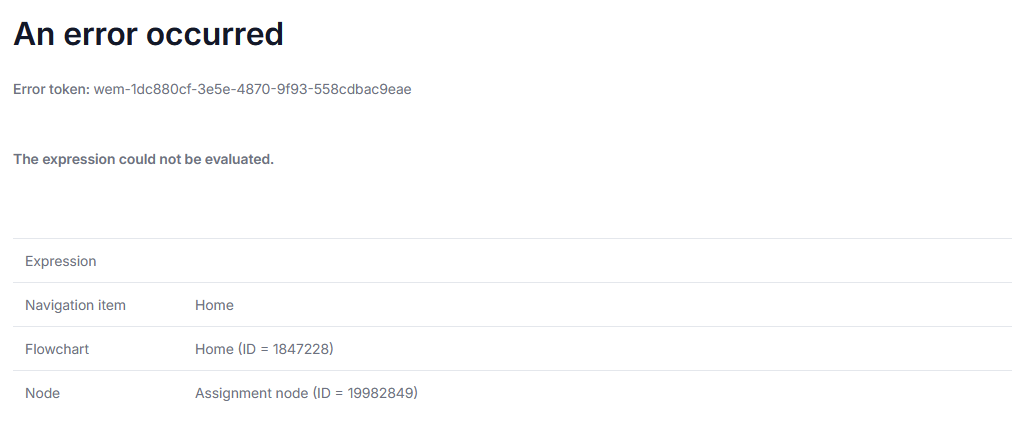
* Investigate application errors shown on the error page
* Identify failures in flowcharts, data handling, or configuration
* Review logs to identify potential issues other users may have experienced.
The Application Log should be inspected regularly to identify potential issues affecting users.
### Log Details
#### Application log:
* Timestamp: By default UTC time of log event.
* Application: Name of application where the log event occurred
* Node ID: Current node when error occurred
* Error token: used to find identify error and used by support to find the log item.
* Message:
#### System log
* Timestamp: By default UTC time of log event.
* Error token: used to find identify error and used by support to find the log item.
* Log level
* Error: A failure occurred that prevented an operation from completing successfully. These entries usually require investigation.
* Warn: A potential issue or unexpected condition was detected. The application may continue running, but the event could indicate a configuration or logic problem.
* Info: Informational messages describing normal system or application activity. These entries are typically used for monitoring and tracing execution.
* Service name: Service where the log item originates from.
* Version: runtime version of application causing the log item
* Exception type: Indicates which component or subsystem generated the error.
### Error Tokens
Each error recorded in the Application Log contains an **error token** that indicates the origin of the issue.
| Prefix | Type | Description |
| -------- | ----------------- | -------------------------------------------------------------------------- |
| **wem-** | Application Error | Error caused by application logic or configuration created in the Modeler. |
| **sys-** | System Error | Error originating from internal runtime services or platform components. |
| **env-** | Environment Error | Error related to runtime environment configuration or infrastructure. |
### Interpreting Errors
As a general guideline:
* **wem- errors** are usually caused by application logic and can typically be resolved by reviewing the Modeler configuration and the related flowchart/interaction nodes.
* **sys-** and **env- errors** originate from the runtime environment or platform services and may require assistance from a **system administrator or WEM Support**.
## Mail Log
The **Mail Log** provides an overview of all outgoing emails sent through the SMTP configuration of applications deployed on the selected Runtime.
This log is intended for monitoring and troubleshooting email delivery. It does not display full email content.
### Purpose
Use the Mail Log to:
* Verify whether emails were sent successfully
* Identify failed email attempts
* Confirm which SMTP server was used
* Trace outgoing email activity per application
* Export up to 50,000 log entries as an excel document.
The Mail Log reflects emails sent via the configured SMTP settings (either environment-level or application-level, depending on configuration).
#### Log Overview
The main Mail Log screen displays a grid containing all recorded outgoing email events.
Each entry includes:
* **Timestamp** – Date and time the email was processed
* **Application ID** – Technical identifier of the application
* **Portal ID** – Associated portal
* **SMTP Server** – Server used to send the email
* **From Email** – Address used in the outbound message
* **To Email (partial)** – First letter and domain of the recipient address
* **Status** – Indicates whether the message was successfully sent
For privacy and security reasons, the full recipient address is not displayed in the overview.
#### Mail Log Details
Selecting a log entry opens the detail view.
The detail page includes:
* Timestamp
* Application ID
* Portal ID
* SMTP Server
* From Email
* To Email (first letter and domain)
* Subject
* Status
#### Export to Excel
The Mail Log supports exporting data to an Excel file.
* The export button is located at the bottom left of the screen.
* A maximum of **50,000 log entries** can be exported per file.
The exported file contains the following columns:
* Timestamp
* Portal ID
* SMTP Server
* From Email
* To Email (first letter and domain)
* Email Subject
This export functionality is intended for reporting and analysis purposes.
#### Important Notes
* The Mail Log only reflects emails processed by the applications SMTP configuration.
* Successful logging does not always guarantee successful delivery to the recipient inbox (external mail server handling may still reject messages).
* If emails are not appearing in the log, verify:
* SMTP configuration
* Application settings
* IP restrictions
* Firewall or external mail server policies
## Task Log
The **Task Log** records execution details of scheduled tasks running within applications deployed on the selected Runtime.
This log shows how scheduled tasks are executed and helps identify issues.
The main "Task Log" screen displays a grid containing recorded log entries for scheduled tasks.
#### Log Overview
Each entry includes:
* **Timestamp** – Date and time of the log entry
* **Application ID** – Application where the task is executed
* **Schedule Name** – Name of the configured schedule
* **Task ID** – Identifier of the scheduled task
* **Log Level** – Severity level of the message
* **Message** – Short description of the event
#### Log Levels
Each entry is categorised by a log level indicating the severity or purpose of the message.
The available log levels are:
* **Fatal** – Critical failure; task execution cannot continue
* **Error** – Execution error occurred
* **Warning** – Unexpected situation, but execution may continue
* **Info** – General informational message
* **Trace** – Detailed execution tracing information
* **Debug** – Developer-level diagnostic information
When troubleshooting, begin with **Fatal** and **Error** messages before reviewing lower-level logs.
#### Log Details
Selecting a log entry opens a detailed overlay view.
The detail screen contains:
* **Schedule Name and ID**
* **Task ID**
* **Application Information**
* **Timestamp**
* **Log Level**
* **Message**
In addition, the overlay displays:
* **Full Message** – The complete web service response in JSON format
* **Scopes** – Specific scope parts of the web service message
The full message view is particularly useful when scheduled tasks do not behave as expected.
---
# Agent Instructions
This documentation is published with GitBook. GitBook is the documentation platform designed so that both humans and AI agents can read, navigate, and reason over technical content effectively. Learn more at gitbook.com.
## Querying This Documentation
If you need additional information that is not directly available in this page, you can query the documentation by asking a question.
Perform an HTTP GET request on the following URL with the `ask` and `goal` query parameters:
```
GET https://docs.wem.io/platform/gettingstarted/devops-portal/logs.md?ask=&goal=
```
`ask` is the immediate question: it should be specific, self-contained, and written in natural language.
`goal` is what the user is ultimately trying to achieve, the reason they need the answer. Sharing it helps GitBook give you a better, more relevant answer. A goal is most helpful when it describes the outcome the user wants rather than restating the question. For example, with `ask=how do I create an API token`, a goal like `automate deployments from our CI pipeline` lets GitBook tailor the answer to that use case.
The response will contain a direct answer to the question and relevant excerpts and sources from the documentation.
Use this mechanism when the answer is not explicitly present in the current page, you need clarification or additional context, or you want to retrieve related documentation sections.